Getting Started
From nothing to standing on a planet in about ten minutes. You need a Windows PC.
Both downloads (the game installer and the player files) are on the server's download page.
- Install the game.
On the download page, downloadstarquestonlinesetup.exe, run it, and install StarQuest Online to the default folder. - Install Python 3.
Get it from python.org. In the installer, tick "Add python.exe to PATH" before clicking Install. - Get the player files.
On the download page, downloadSQO_player_files.zip. Right-click it and choose Extract All. - Start the game.
Double-clickPLAY.batin the extracted folder. It fills in the server address for you. If the login screen asks for it, type216.128.157.139 - Log in.
Type any new user name and password. Your account is created the first time you log in, so remember them. - Create your character and play.
Click NEW, create your character, then select it and press Select.
Game settings
The SQO Settings window lets you tune the game's look and controls. Open it from your player folder
(SQO_settings.bat), change what you like, click Save, then start the game with
PLAY.bat. Changes apply the next time the game starts. The defaults are a good place to begin.
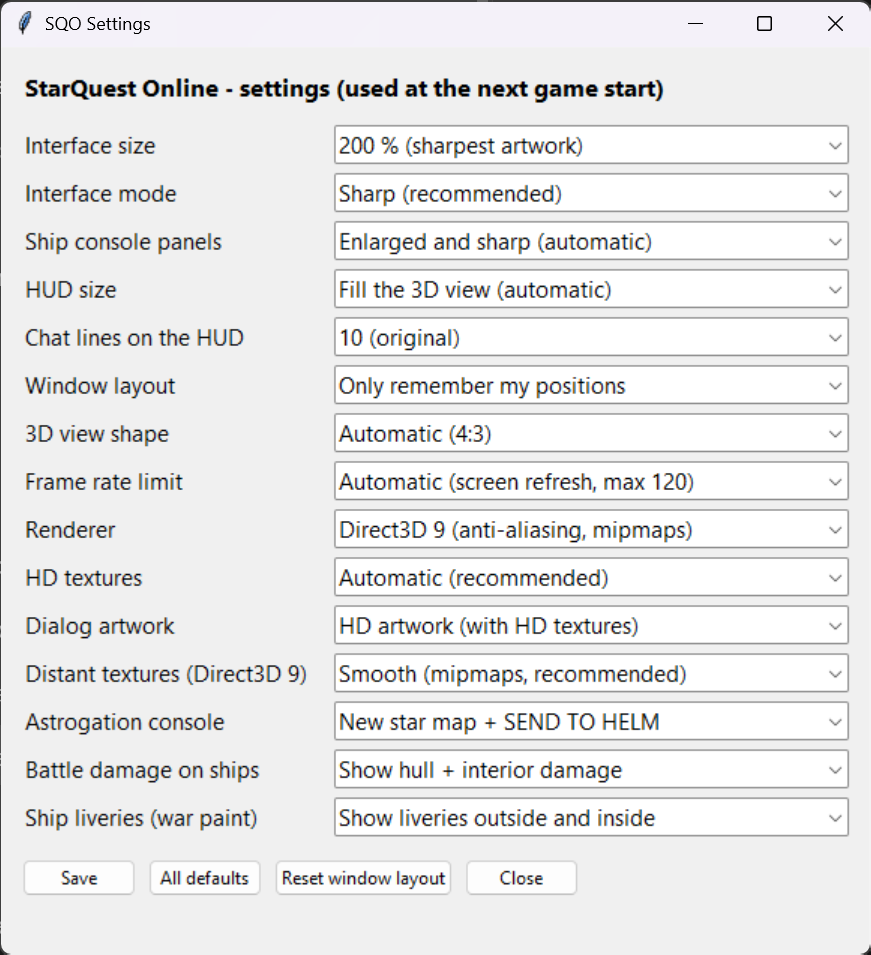
| Setting | What it does |
|---|---|
| Interface size | How big the menus, windows and text are. 200 % gives the sharpest artwork on large screens; pick a smaller size if things look too big. |
| Interface mode | How the interface is drawn when it's scaled up. Sharp is recommended. |
| Ship console panels | Size of the starship station consoles (helm, tactical and so on). Enlarged and sharp sizes them automatically. |
| HUD size | Size of the on-screen HUD. Fill the 3D view scales it to your view automatically. |
| Chat lines on the HUD | How many chat lines show over the 3D view. 10 is the original. |
| Window layout | Whether the game remembers where you put its windows. |
| 3D view shape | The shape of the 3D view. Automatic (4:3) matches what the game was designed for. |
| Frame rate limit | Caps frames per second. Automatic matches your screen's refresh rate, up to 120. |
| Renderer | Direct3D 9 adds anti-aliasing and smoother textures. If you get graphics problems, try the other renderer. |
| HD textures | Uses the high-resolution texture pack. Automatic is recommended. |
| Dialog artwork | Uses HD artwork in the game's dialog windows (needs HD textures). |
| Distant textures (Direct3D 9) | Smooth keeps far-away surfaces from shimmering. |
| Astrogation console | Choose the new star map with SEND TO HELM, which passes your plotted course straight to the helm, or the original console. |
| Battle damage on ships | Shows hull and interior damage on ships that have been in a fight. |
| Ship liveries (war paint) | Shows ship paint schemes on the outside and inside of ships. |
All defaults puts every setting back to normal. Reset window layout fixes windows that ended up off screen.
Common problems
| What you see | What to do |
|---|---|
| PLAY.bat flashes and closes, or says "python is not recognized" | Python isn't installed or wasn't added to PATH. Run the Python installer again, choose Modify, and tick "Add Python to environment variables". |
| Chrome blocks the download | Click the download arrow in Chrome, then Keep. The server page uses plain http. |
| "Username and/or Password Do Not Exist !" | Wrong password for an existing account. After 5 wrong tries the login is locked for 15 minutes. |
| "Attempting initial connection" forever | Check the server address is 216.128.157.139, allow the game through your firewall, and check the Discord for maintenance. |
| "That avatar is currently logged in !" | That character is still online. Wait a minute after a crash and try again. |
Playing on Linux
The client runs under Wine. Install wine with 32-bit support, then winetricks mfc42, then run the
installer with Wine (wine starquestonlinesetup.exe). Use the installer: copying the game folder from another PC
is not enough. Then follow steps 2 to 6 above.
Two tips: if the game won't start, run winetricks mfc42 (the game needs that Microsoft library). If the
login box or other windows show up as black squares, turn on a Wine virtual desktop (winecfg, Graphics tab,
"Emulate a virtual desktop"). If PLAY.bat gives you trouble under Wine, ask in the
Discord.